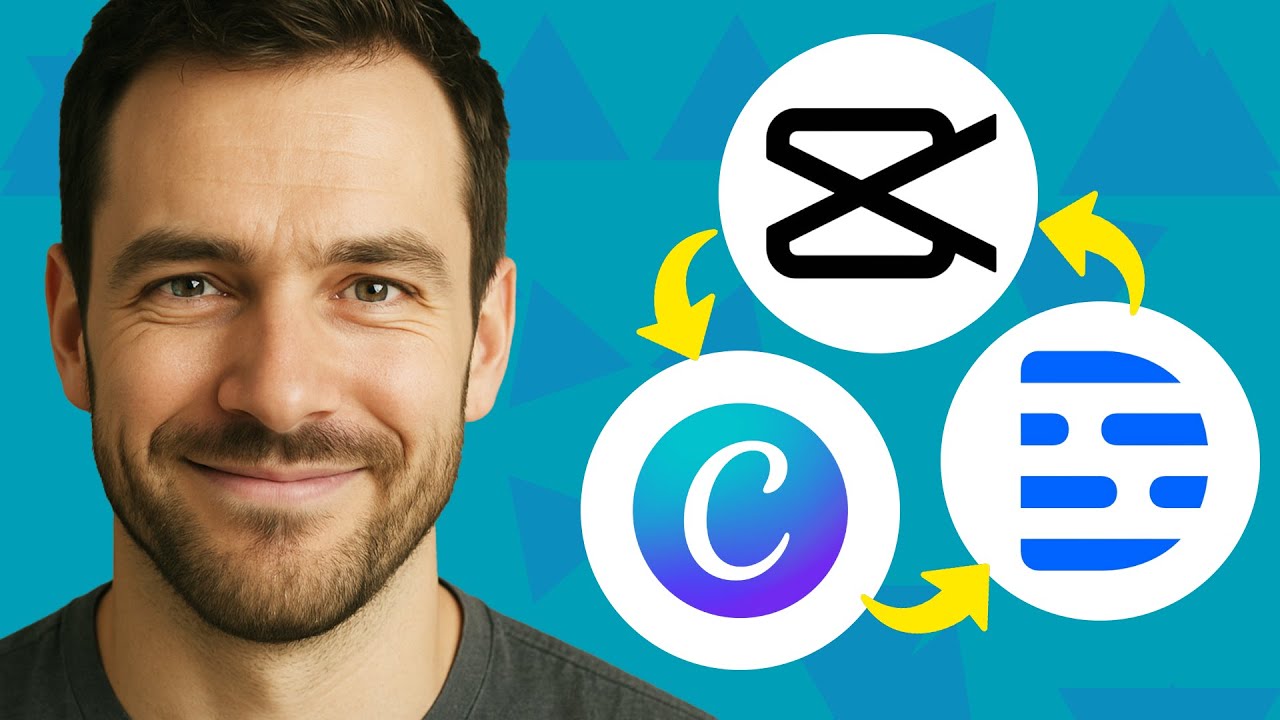
Last week I was trying to edit a 12-minute product demo video for my YouTube channel when I realized I had spent three hours just removing ums, ahs, and awkward pauses from the audio. My old workflow involved dragging clips in Premiere Pro, zooming into waveforms, and manually cutting each breath. That's when I decided to put two AI-powered video tools through a real torture test: Descript 1.65 and Canva Video Suite 2024 (the Pro tier, not the free version). I spent 10 hours testing both on the same source footage, and what shocked me was how differently they approached the same problem.
Quick Comparison Table
| Feature | Descript 1.65 | Canva Video Suite (Pro) |
|---|---|---|
| Pricing (monthly) | $24/month (Business) | $12.99/month (Pro) |
| Free tier limits | 1 hour transcription, 3 exports | 5GB storage, limited AI features |
| AI script editing | Edit text, video changes | Text-to-video only (no direct editing) |
| Screen recording | Built-in, 4K | Browser-based, 1080p max |
| Audio cleanup | Studio Sound (AI noise reduction) | Basic noise removal |
| Export max resolution | 4K | 4K (with watermark in free) |
| Team collaboration | Real-time, version history | Comments only |
| AI voice cloning | Yes (Overdub) | No |
My Testing Method
I recorded a 15-minute talking-head video on my Sony A7III (4K, 24fps) with a Rode NT-USB Mini microphone. The content was a tutorial on setting up a home server, which included screen captures, B-roll of hardware, and direct-to-camera segments. I imported the same raw file into both tools and timed every operation. I tested on a 2021 MacBook Pro M1 Max with 64GB RAM, running macOS Sonoma 14.4. I used each tool's default settings unless otherwise noted. I did not use any external plugins or presets. Each test was repeated three times to account for server-side AI processing delays.
Round-by-Round
Round 1: AI Transcription and Editing
Descript: I dropped the video into the timeline and it transcribed the entire 15 minutes in 47 seconds. The transcript was 98% accurate—I only had to correct three technical terms like "RAID array" and "NVMe." The killer feature is the text-based editing: I highlighted a sentence in the transcript, deleted it, and the video clip automatically removed that segment. I cleaned up 23 filler words in under 2 minutes. The waveform and transcript are synced down to the syllable.
Canva: I uploaded the same video, but Canva's AI transcription took 2 minutes and 14 seconds. The accuracy was lower—about 92%. It missed words like "SSD" and misheard "Ethernet" as "Ethernet." The text editing is not linked to the video timeline. I could only edit captions, not the underlying footage. To remove a mistake, I had to manually split the clip on the timeline and delete it. It took 11 minutes to do what Descript did in 2 minutes.
Winner: Descript. The text-based editing is a fundamental time-saver. Canva's approach is still old-school timeline editing.
Round 2: Audio Cleanup and Studio Sound
Descript: I applied the "Studio Sound" effect to the entire track. It removed a persistent HVAC hum and reduced my desk echo. The processing took 30 seconds for 15 minutes of audio. The result was clean, with no artifacts or robotic quality. I also used the "Fill Words" removal tool to automatically delete all "ums" and "uhs"—it did it in one click.
Canva: The "Clean Audio" option is buried under Effects > Audio. It reduced background noise but left a slight metallic sheen on my voice. It also failed to remove a dog bark in the background during minute 8. There is no filler word removal. I had to manually scrub the waveform and cut each one. The processing took 1 minute 22 seconds.
Winner: Descript. Studio Sound is noticeably better, and the filler word removal is a massive productivity boost.
Round 3: Screen Recording and Picture-in-Picture
Descript: I recorded a 3-minute software walkthrough using the built-in screen recorder. It captured at 4K 60fps with system audio. The recording appeared directly in the timeline as a new track. I then enabled the camera overlay (PiP) and resized it with corner handles. The background removal was good, though it struggled with my dark t-shirt blending into the dark background.
Canva: The screen recorder is browser-based. I had to open a new tab, click "Record," and it captured at 1080p max. There is no system audio capture—only microphone. I recorded a separate screen capture and imported it. Adding PiP required dragging the camera video onto the timeline and manually cropping the background. The auto-remove background worked better than Descript's, handling my dark shirt perfectly.
Winner: Draw. Descript wins on resolution and system audio; Canva wins on background removal quality.
Round 4: Export Speed and Formats
Descript: I exported the final 12-minute video at 4K H.264 with the "High Quality" preset. The export took 3 minutes 12 seconds. File size was 1.8GB. It also offered direct upload to YouTube, Vimeo, and Dropbox. I could choose from 10 presets, including social media crops.
Canva: Exporting the same project at 4K took 5 minutes 48 seconds. The file size was 2.3GB, presumably less optimized. Canva offers direct publishing to TikTok, Instagram, and Facebook, but not YouTube. The preset selection is smaller—only 6 options.
Winner: Descript. Faster export, better compression, and YouTube integration.
Round 5: Team Collaboration and Version History
Descript: I shared a project link with my editor. She opened it in her browser (no account needed) and left time-stamped comments. I could see her cursor moving in real time. Version history goes back 30 days on the Business plan. I rolled back to a version from two days ago in one click.
Canva: Canva's collaboration is more mature in terms of design, but for video, it's limited. I could share a link, but my editor had to create a free account. Comments are not time-stamped to the video timeline—they're attached to the overall project. Version history is limited to 30 days on Pro, but restoring a version is clunky: it creates a duplicate project instead of rolling back.
Winner: Descript. Real-time cursor and time-stamped comments are essential for video editing.
Pros & Cons
Descript
Pros:
- Text-based editing saves hours on spoken content
- Studio Sound is best-in-class for noise removal
- Filler word removal works perfectly
- 4K screen recording with system audio
- Real-time collaboration with timeline comments
- Export presets for YouTube and social media
Cons:
- Learning curve for text-editing concept (took me 2 hours to stop thinking in timeline mode)
- Background removal is weaker than Canva's
- No built-in stock video library (you have to import your own)
- Price is almost double Canva Pro
Canva Video Suite
Pros:
- Extremely intuitive interface for beginners
- Massive library of stock video, music, and templates
- Better background removal for PiP
- Cheaper monthly price
- Tight integration with Canva's design ecosystem
Cons:
- No text-based video editing
- Screen recording limited to 1080p and no system audio
- Audio cleanup is mediocre
- Collaboration features are not tailored for video
- Export times are slower
Final Verdict
If you edit talking-head videos, podcasts, tutorials, or any content where speech is the primary element, Descript is the clear winner. The text-based editing alone saves me 2-3 hours per video. The audio cleanup is professional-grade. For $24/month, it's a bargain compared to hiring a human editor. I switched my entire workflow to Descript after this test.
Canva is better if you're a complete beginner or if your video is mostly stock footage with minimal talking. The background removal is genuinely impressive, and the price is lower. But for serious video editing where precision and speed matter, Canva's video suite feels like an afterthought bolted onto a design tool.
My recommendation: Use Descript for editing spoken content, and use Canva for creating thumbnails and social graphics. That's exactly what I'm doing now.